The Box in the Hallway Has Been Wide Open for Four Years: Seven Router Settings to Change This Weekend
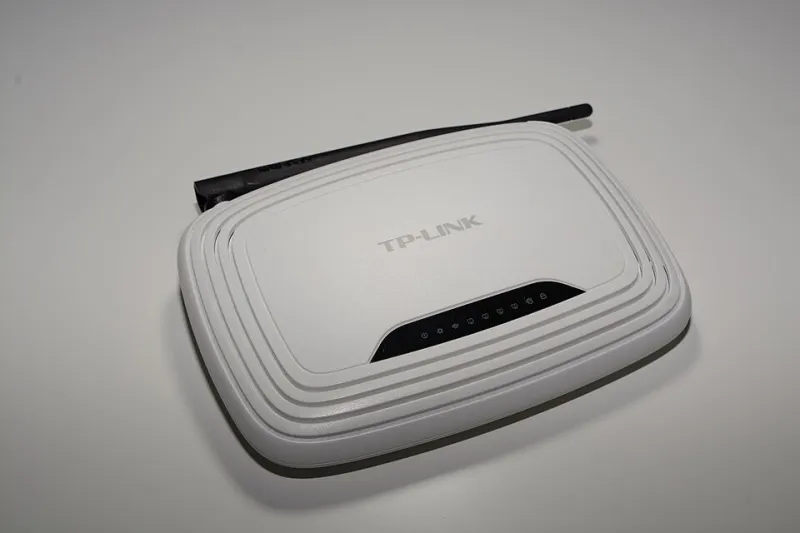
Photo: Hayden Schiff, CC BY 4.0, via Wikimedia Commons
Every home has one piece of tech that is switched on 24 hours a day, has never been updated by its owner, and quietly faces the internet. It's not the telly. It's the router — the white box on the shelf behind the lamp, still running the settings it left the factory with four years ago.
The good news is that hardening it is one of the cheapest security wins available. No subscription, no new hardware, no engineer. An hour, a laptop and the card on the back of the hub.
Before you start
Find your router's admin address and login. It's printed on a sticker or card supplied with the hub — the address is usually something like 192.168.1.254 on a BT Smart Hub, 192.168.0.1 on a Sky Broadband Hub or Virgin Media Hub, and 192.168.1.1 on many TalkTalk and EE units. Type that into a browser on a device connected to your home Wi-Fi, then use the admin username and password from the card.
Two things worth knowing. First, note down any settings before you change them, so you can put things back. Second, some ISP-supplied hubs hide options — Sky and Virgin, in particular, lock away certain controls depending on how the hub is configured. If an option below simply isn't there, that's normal; move on.
Do this when nobody is mid-video-call, because a couple of these steps will briefly drop the Wi-Fi.
1. Change the admin password
The admin login is not the same as your Wi-Fi password. It's the master key to the router, and on plenty of older units it is still 'admin' and 'password'. Change it to a long passphrase — three or four random words is plenty — and store it in a password manager rather than on a sticky note attached to the router itself.
2. Tighten the Wi-Fi security and change the Wi-Fi key
In the wireless settings, look for the security mode. You want WPA2-AES as a minimum, and WPA3 if the hub offers it. If you see WEP or TKIP anywhere, switch away immediately — those are broken. While you're there, check the Wi-Fi password. A long random string printed on the card is actually fine; 'SmithFamily2019' is not. Changing it will disconnect every device in the house, so have the new key to hand before you start.
3. Switch off WPS
WPS is the push-button pairing feature that lets you add a device without typing a password. It's convenient and it has a long history of being abused, including the older PIN-based version. Most hubs let you turn it off in the wireless menu. Do that. You'll type a password slightly more often and sleep better.
4. Close the doors you didn't know were open
Two settings matter here, and both are usually on by default.
Remote management lets you log into the router from anywhere on the internet. Unless you specifically use that feature, turn it off. It's a login page exposed to the world for no reason.
UPnP lets devices on your network open ports to the internet automatically. Games consoles love it; so does malware. Turn it off, and if a console or a work app complains, forward the specific port manually instead. It's a five-minute job with a quick search for the app's port number.
Check the port forwarding list while you're in there too. If there are rules you don't recognise, delete them.
5. Stand up the guest network
Almost every ISP hub has a guest Wi-Fi option buried in the settings. Switch it on, give it its own password, and move the smart plugs, the robot vacuum, the video doorbell, the kids' friends' phones and anything else with questionable firmware onto it. If the hub offers network isolation for the guest network, turn that on as well — it stops guest devices talking to your laptops and NAS drive.
The logic is simple: a £15 smart plug that stops getting security updates should not share a network with the laptop that holds your banking apps and your email.
6. Turn on automatic firmware updates
Firmware is the router's own operating system, and updates patch security holes. Look under maintenance, system or administration for a firmware or software update section. Some hubs update themselves silently; others need a nudge. If there's an auto-update toggle, enable it. If not, put a monthly reminder in your calendar to check.
If your hub hasn't had an update in years and the ISP has stopped supporting it, that's a genuine reason to ask for a newer model — most major UK providers will swap an old hub for free or cheaply on request, and newer units bring Wi-Fi 6 or Wi-Fi 7 along with better security defaults.
7. Audit the device list, then reboot
Every router shows a list of connected devices. Open it and count. Do you recognise all of them? Name the ones you know and look hard at the ones you don't — a mystery device on your network is worth investigating before you assume it's the neighbour's smart meter.
If something genuinely doesn't belong, remove it and change the Wi-Fi password, which forces everything to re-authenticate. Then reboot the router — a monthly restart clears out glitches and applies pending updates. While you're at it, lift it off the floor, out of direct sun and away from the microwave.
If you only do three things
Change the admin password. Turn off remote management and UPnP. Enable automatic updates. That's fifteen minutes and it removes the easiest ways in.
If you run a business from home
Micro-firms — a salon, a consultancy, an eBay or Etsy shop — often carry client details, invoices and payment logins over the same router the family uses for streaming. The seven steps above apply just the same, and they're a decent starting point for the basics covered by Cyber Essentials. If you handle client data regularly, it's also worth checking whether your business insurance asks anything about network security at renewal, because more of them now do.
None of this is glamorous, and none of it will ever appear in a product review. But a router with a changed admin password, a guest network and updates switched on is a genuinely harder target than the one sitting in most UK hallways right now.